Dev tools
While in the browser either press F12 to open the dev tools or right click an element and select Inspect in the context menu to open the developer tools and inspect said element.
Basic Usage
In the dev tools you can inspect the HTML and CSS of the page, debug JavaScript, monitor network requests and much, much more. It's a powerful tool that will help you understand how websites work and how to build your own.
As we go through this guide, open the dev tools F12, put it on the bottom and follow along with the examples. Doing, is learning.
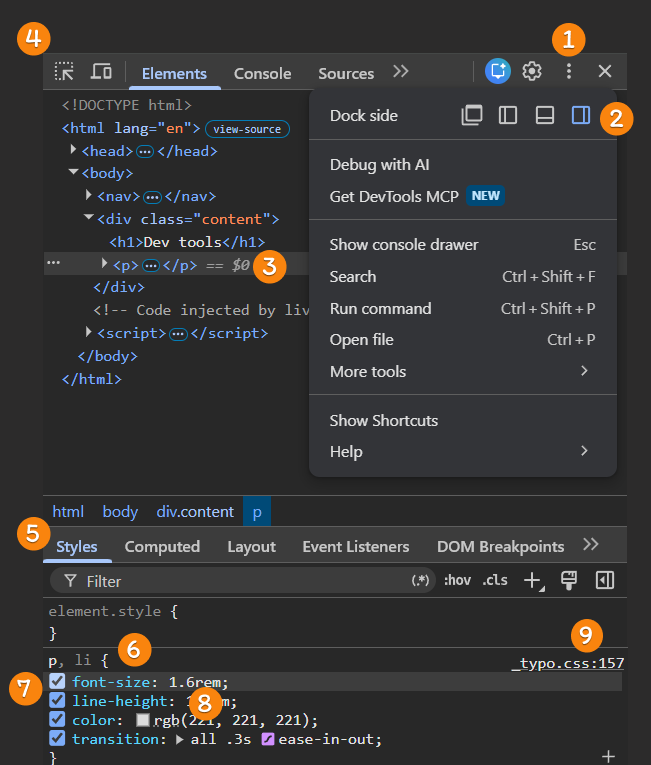
- You can click the "three dots icon" in the top right corner of the dev tools to access additional options.
- Here you can choose the position of your dev tools. When running split screen, the bottom is recommended.
- When you hover a HTML element in the Elements panel, it will be highlighted on the page. The highlight will also show the dimensions of the element. You can click an HTML element in the Elements panel to inspect its properties and styles.
- Alternatively you can click the selector tool and then click an element on the page directly to inspect it.
- In the Styles tab you can see all the CSS rules that apply to the selected element and even edit them live to see the changes immediately. Do know that these changes are temporary and will be lost when you refresh the page.
- Here you see the CSS selector and the properties that are applied to the selected element. This is exactly the same as what you would write in your own CSS files.
- You can disable individual CSS properties by unchecking the checkbox next to them. This is useful for testing different styles without permanently changing your CSS.
- You can click the properties or the values to edit them directly. Use the arrow keys to change the values incrementally. Lastly, click at the end of a line to add a new line.
- Look! You can even see where that code's written in your file!
Box Model
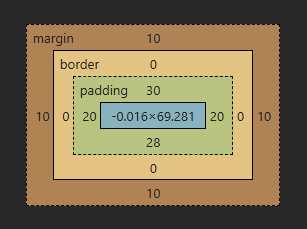
When you scroll down enough, you can see the box model of the selected element, which shows the element's margin, border, padding, and content dimensions. The box model is a fundamental concept in web design and helps you understand how elements are sized and spaced on a page. It's essential that you understand this principle. Learn more here.
Next: Visual Studio CodeSmall task
- Use the dev tools to inspect the h2 above and change its text to " was here"
- Use the dev tools to inspect the body and change its background color.