Github & GIT
Creating a Github account.
First of all, create yourself a github account.
Background
What is GIT?
There's not 'a' GIT. 'GIT' or 'GIT repo' is commonly used for short while we're actually talking about a GIT repository. A GIT repository is a place where all your project files are stored and additionaly keeps a version history.
In practice that means that you can change one or multiple files, give a name to the set of changes you've done and then push them inside the GIT repository. You can now see when you did what changes. You can roll them back and if your GIT repository is stored online, others can fetch your changes. This is the way teams work together on programming assignments.
What is Github?
Github is one of many services that offers the ability to store your GIT repositories on their servers. For the past decade it has been the most popular platform by far and during your career you will often go there to download software or maybe even explore others' work.
How to work with GIT from VSC
Set your personal information to avoid any errors
- Open the terminal CTRL + SHIFT + `
- execute:
git config --global user.name "YOUR NAME HERE" - execute:
git config --global user.email YOUR@EMAIL.HERE
Open the "Source Control" panel
In the sidebar there's this little icon with circles and lines connecting them. Once you've already initialised your repository it will also show a blue circle containing the number of changed files. Click that.
Initialising your repository
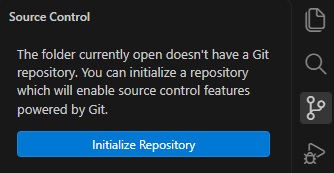
When you initialize your repository you basically create it. You can have a GIT repository which is solely local. In this case it will work exactly the same and show you which files you edited when. You can still roll back changes and so forth. The only difference is that your files aren't stored online as well as offline so you don't have a backup. Just a history. Initialising doesn't publish your repository to the internet. That's the next step.
Publishing to Github
while initialising doesnt publish.....
Comitting changes
Af
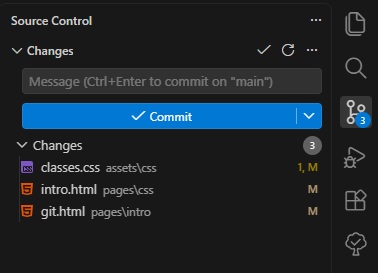
Your first commit
Prefer working with commands instead of using the UI?
This section needs a lot of work since even I don't regularly use this. Honestly, the UI in VSC is pretty good in most cases.
Most frequently used commands
git pull → This command checks the GIT repository for any changes and pulls them. You now have the latest version
git add -A → This command stages all the changes you have made for the next commit. Basically it prepares your changes to be committed.
git commit -m "Your commit message" → This command commits your staged changes with a message describing what you have done. They are now recorded in the local repository.
git push → This command pushes your commits to the remote repository (e.g., GitHub).
You can also combine commands. For example, you can stage and commit changes in one line using git commit -am "Your commit message". This will automatically stage all tracked files and commit them with the provided message.
Other commands
There's a great amount of different commands which have their specific uses. You can find them on the official site.